xiats
xiatsHome › Help center › Video upscaling
Video upscaling: 720p to 1440p
Choose a 720p video in the web workspace and confirm the cost to upscale to 1440p. Review the source and quotas on the left, then preview and download on the right. Results depend on source quality.
This guide covers the web AI creation tool Video upscaling. The web app uses the platform service and needs no personal cloud key.
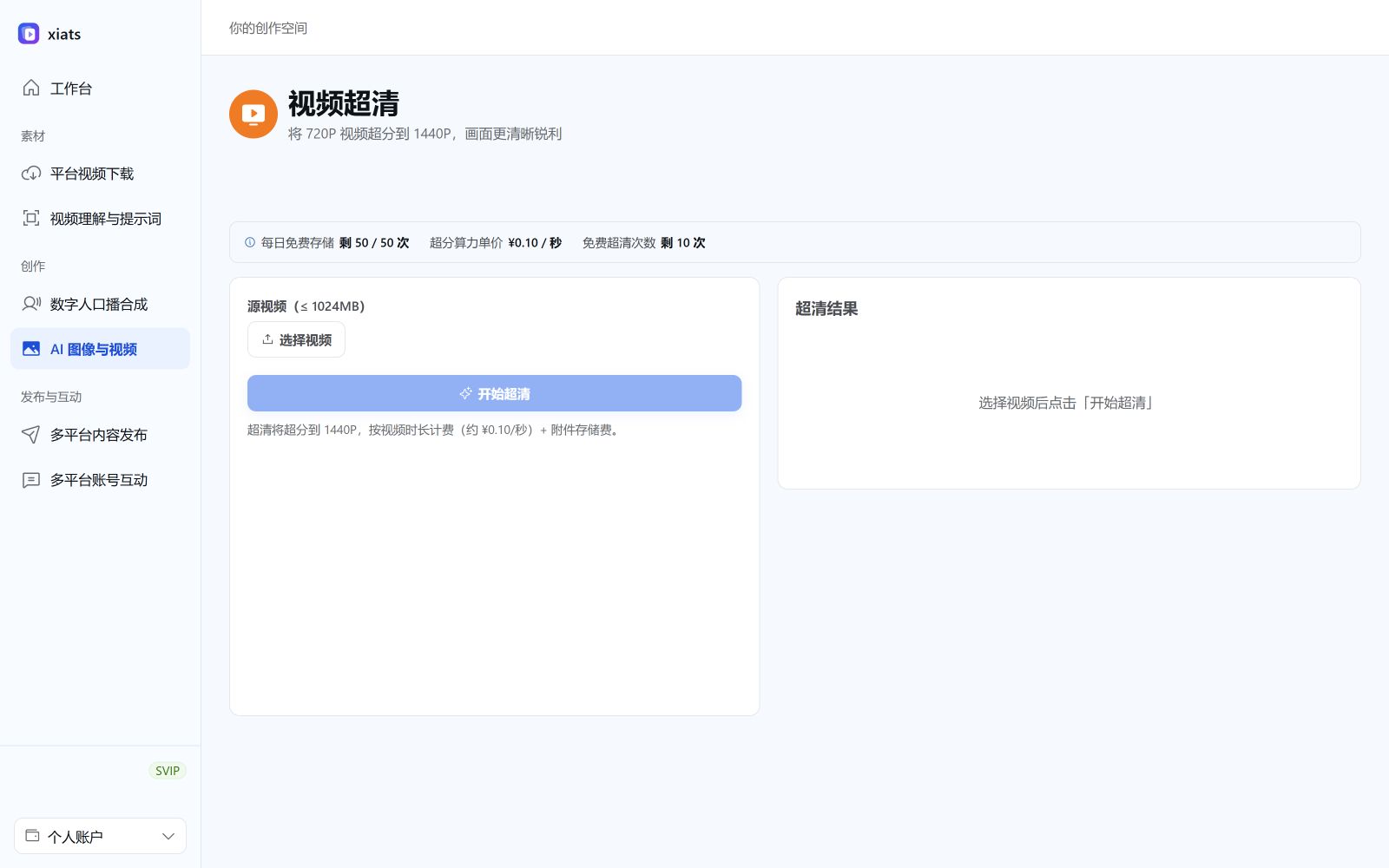
Steps
- Open Video upscalingSign in and open AI creation → Video upscaling. Check service availability and quotas first.
- Choose a source videoClick Choose source video and select a local video. Common video formats are supported; see the page for the size limit. This tool is designed for 720p → 1440p upscaling.
- Confirm the cost and startReview the compute rate, daily free storage, free upscaling allowance, and balance, then click Start upscaling. Check duration-based charges and attachment storage fees in the confirmation dialog before submitting.
- Preview and downloadWait for source upload → upscaling → output transfer. Preview the completed result on the right and click Download 1440p. Completed videos are also available from Task history below.
Frequently asked questions
Can it upscale 1080p further?
This tool is designed for 2× upscaling from 720p to 1440p. A 720p low-resolution source is recommended.
Do I need my own API key on the web?
No. The web app uses the platform service with displayed quotas and fees, and has no personal-key mode switch.
Are file size and duration limited?
Yes. Common video formats are supported, with the size limit shown near Choose source video. The server validates duration and other limits; adjust the source according to page guidance and errors.
Can I leave after starting a task?
Processing continues in the background. Return later to check Task history and download completed videos.